

Every business has its own quirks, workflows, and growth ambitions. It’s rare to find two organizations with identical processes or reporting needs—especially among fast-changing small and mid-sized businesses. Microsoft Dynamics 365 Business Central (D365 BC) stands out because it’s not a rigid, one-size-fits-all ERP. Think of it as your digital control center, designed for tailoring so you can run your business, your way.
But with a robust system comes endless options: personalizations, low-code tweaks, deep custom development, and seamless integrations. How do you approach customizing Business Central to deliver maximum value—without creating a shaky, costly mess? This in-depth guide will help you step-by-step, in plain English, so you can shape Business Central into the perfect solution for your unique needs.
Let’s imagine a few situations:
Business Central gives you the flexibility to address each of these—without major disruption.
means modifying your interface or workflow—changing views, hiding or adding fields, or rearranging dashboards—often without code.
dives deeper: developing new features, modules, or automating processes using built-in tools or code.
links Business Central to other business apps (like payroll, CRM, or e-commerce) so information flows smoothly.
Smart businesses typically start with personalizations and simple integrations, adding deeper customizations only as needed.


Not every user needs the same information. Business Central lets you create role-tailored experiences:
Individual users can:
These tweaks boost productivity and adoption—staff engage better with a system that feels like “theirs.”

With the in-browser Designer, you can:
No development skills required—just a clear vision for your team’s needs.
Microsoft’s AppSource marketplace contains hundreds of plug-and-play extensions:
Most updates, support, and enhancements for these extensions are managed by their providers, minimizing long-term maintenance headaches.

Business Central includes customizable workflows to automate tasks like:
You can tweak these using a wizard—choose your triggers, steps, and notifications.
For even more power, Microsoft Power Automate (part of the Power Platform) connects Business Central with thousands of cloud apps. Examples:
No deep coding required—just map your process, select the trigger/action, and connect.

Every business measures success differently. Business Central’s reporting and analytics capabilities are both broad and highly configurable.
You can share dashboards, embed them into user homepages, or even send automated updates via email.

Tip: Concentrate customization on areas that deliver true competitive value or efficiency—over-customization can hinder upgrades and raise costs.

CRM: Link with Dynamics 365 Sales, HubSpot, or Salesforce.
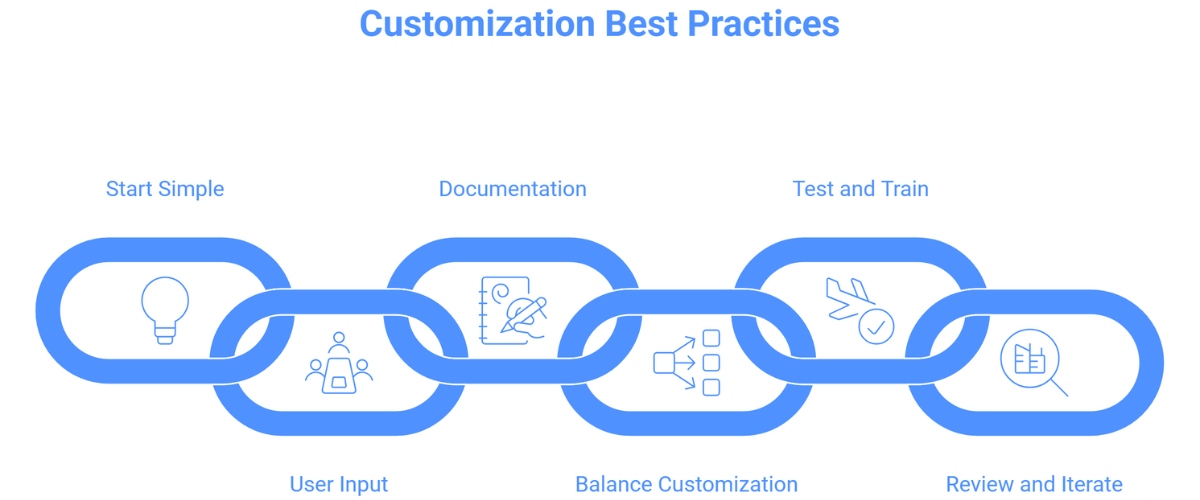
Before pursuing deep changes, list your top pain points and “must-have” features. Often, personalizations or marketplace extensions solve issues without custom code.
Involve staff from every department in the process. Run workshops to uncover real workflow gaps and test interface changes in small groups.
Record why and how you changed fields, workflows, or reports. Good documentation ensures easy onboarding of new staff and smooth system upgrades.
Don’t over-customize. Major upgrades from Microsoft sometimes require tweaks to deep custom code. Lean on standard features/app marketplace first, reserving custom development only for clear, lasting needs.
Pilot all changes with a small group. Gather feedback and fine-tune. Offer clear, specific training—change is never just about software.
Set regular check-ins to see how customizations are working. Are there areas of confusion? Is reporting getting used? Periodic reviews let you refine and add value as needs evolve.
| Approach | Suitable For | Expertise Needed | Maintenance Impact | Upgrade-Friendly? | Personalization (Views/Fields) |
|---|---|---|---|---|---|
| All Users | Everyone (End User) | None | Low | High | Yes |
| Designer Mode | Departmental Tweaks | Power User | Low | High | Yes |
| AppSource Extensions | New Features or Integration | Admin/Power User | Low | High | Yes |
| Power Automate / Workflow | Automation, Notifications | Admin, Super User | Low/Medium | High | Limited |
| AL Development | Advanced Logic / Modules | Developer / Partner | Medium/High | Medium/Low | No |
| APIs / Custom Integration | Legacy or Custom Systems | Developer / Partner | Medium | High | No |
Business Central’s customization capability evolves constantly—Microsoft releases regular enhancements and new integrations, especially around AI-powered automation and analytics. As new challenges (and opportunities) emerge in Australian and global business, Business Central’s flexibility ensures you can adapt—without a never-ending stream of consultants or costly IT projects.
Customizing Business Central is powerful, but small mistakes can make the system harder to use. Here are a few things to watch out for:
Over-customizing simple tasks — Not every feature needs a custom field or workflow. Start small.
Skipping documentation — Always keep a simple record of what was customized and why.
Not testing changes first — Test new workflows, extensions, or fields in a sandbox before using them live.
Ignoring upgrade compatibility — Make sure every extension is future-ready so your system doesn’t break during updates.
No user feedback — Ask end users if the customization actually helps their daily work.
Customizing Dynamics 365 Business Central is about empowering your team, not just tweaking software. Focus on clear goals, start simple, and involve your team throughout. Lean into the thriving extension marketplace and platform integrations, reserving deep development for those workflows that truly differentiate your business.
When approached step-by-step and with best practices in mind, customization can be the secret behind your unique competitive edge—making your work easier, decisions sharper, and growth faster. Ready to unlock the true potential of Business Central? Start mapping your needs, involving your staff, and embracing a system that fits your business—not the other way around.
Yes. Business Central is built for flexibility and can be tailored to suit unique workflows, roles, and industry requirements through built-in personalization, extensions, and third-party integrations.
Customizations range from UI tweaks (adding/removing fields, rearranging menus, customizing dashboards) to more advanced changes like workflow automation, custom reports, creating new fields, and integrating with other business apps or external data sources.
End users can personalize their pages—such as hiding or adding columns, reordering elements, bookmarking favorite screens, and changing navigation—without coding. These changes only apply to their user profile.
Best practice is to use Microsoft’s extension model and follow recommended customization guidelines. This approach keeps your system compatible with future updates and minimizes disruption.
Absolutely. Business Central offers out-of-the-box integrations with Microsoft 365 and robust APIs for connecting with external systems such as eCommerce, payroll, banking, or vertical industry applications.
Not always. Many changes can be made using drag-and-drop personalization tools and simple configuration. Advanced customizations, like new modules or deep integrations, may require a partner or developer.
All customizations are governed by Microsoft’s enterprise-grade security, including role-based access, encryption, and compliance with leading standards.
Yes. Users and admins can reset personalizations or remove extensions to revert the Business Central environment to its previous state.